Home Home Hub InfoHome Hub Forum Audio Guides
First time here? Latest show Show contents Link to us Alerts by emailRSS FeedBlog updates RSS FeedAudio RSS feed


Subscribe with iTunes


Updates by email


Save with a BT Credit card

FrequencyCast

Unofficial BT Home Hub F.A.Q

Since we started covering the BT Home Hub in our podcasts, we've received a lot of questions on how to use the Hub, what it's capable of, and how to solve problems. We've created this page to help our visitors looking for answers....

Listen NowREVIEW: Listen to our Home Hub review in Show 09:

Podcast Player Download show Play the MP3 Subscribe
You can listen online with our pop-up Pod Player, save as MP3 or subscribe via iTunes.

Listen NowAUDIO GUIDE: Got a BT Home Hub and need help or advice?

Listen to our new Unofficial Guide to the Home Hub
Podcast Player Download show Play the MP3


BT Home Hub FAQ...?

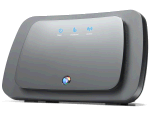
BT's Home HubThe BT Home Hub is a broadband router that connects to your BT Broadband phone line, and to computers or Internet-enabled devices,either via an Ethernet cable, or via wi-fi. As well as connecting to a desktop or laptop computer, the Hub supports home phone (over Broadband) wireless networking and television services,

Our Home Hub FAQ is split into the following categories:

We also have an audio guide on the Home Hub - an MP3 file on some of the Home Hub common topics. More

If you've got a general question about the Home Hub or it's settings, ask us and we'll take a look through the Hub software or the manual for you.

If you need technical help with the Home Hub, we recommend you ask in the FileSaveAs Home Hub forum


General Home Hub Questions

Getting a Home Hub

The BT Home Hub is available direct from BT:

The BT Home Hub can only be used on a phone line enabled with BT Total Broadband (FAQ entry)


Home Hub on non-BT Broadband

We've been asked if the BT Home Hub can be used on Broadband connections other than BT Total Broadband. Our understanding is that the BT Home Hub can only be used on a phone line that's enabled for BT Total Broadband, and not with other providers (such as TalkTalk, Virgin Media, Tiscali, AOL etc).

All of the information that's needed to connect (username, password, service addresses, etc) is hardcoded into the BT Home Hub's built-in software, so you can't edit the settings to get it running on a phone line that's configured for another company's Broadband service. There are a couple of exceptions to this though:

  • Even though you can't use the BT Home Hub as the main router on a non-BT Broadband line, you can still use it as a "repeater" - meaning that it's connected to broadband via a different Broadband router. There's information on how to do this on this thread in our forum.
  • There is one form of workaround that allows you to use the BT Home Hub on a non-BT broadband connection... but it's not for the novice, and it's not supported by BT. The BT Home Hub is actually a re-branded version of an older broadband router, the Thomson SpeedTouch 7G, and you can re-flash the BT Home Hub's operating system with a Speedtouch firmware image. There's information on doing this here, but be warned, it's risky!

If you need to get a router for use on a non-BT Broadband line, try pcworld.co.uk or Dabs.com

Firmware version

This section shows the current version number of BT Home Hub firmware:

  • Software version: 6.2.6E (rolled out in December 2007). Release notes - We've heard that some users are now seeing 6.2.6H rolled out in May

The Home Hub's software version number can be found in the bottom left-hand corner of the page used to administer your hub.

Software updates are 'pushed' to Home Hubs automatically overnight whilst they're connected to BT's system. It may take up to 2 weeks for you to get a new release.
Know of a newer version? Let us know

USB ports

The Home Hub has two USB connectors. We've been asked what these ports are for. Here's what we know:

  • You can use the USB-B port to connect directly to a PC. You need special Home Hub USB drivers available from BT.
  • The USB-A port will be used when connecting your BT Fusion adapter to the Home Hub, and according to BT's site, this port may be used for future developments.

USB Printer sharing: There's been discussion in the Home Hub forum about printer sharing. It seems that it may be possible to connect a printer to the BT Home Hub via USB and to access it via the network. There's some notes about using the Home Hub as a Print Server here. Also, thanks to forum visitor Julioarca for telling us what worked for him:

  1. Add your printer normally as if its attached to your machine.
  2. Once added, right click on properties then on the ports tab.
  3. Click add port, choose Standard TCP/IP Port, click New Port.
  4. Enter 192.168.1.253 as the IP address, and anything you like as the name.
  5. Click Custom, then Settings.
  6. Choose LPR as protocol Queue Name: LPT1 check LPR byte counting as enabled, click ok.
  7. Finish the wizard.

USB Hard Drive: Thanks to Denis Pratt for the following (Jan 07): " I recently attached a Packard Bell Store and Save External Hard Drive to the Type A USB port of my Home Hub and found the drive became visible and usable to the whole of my home network. The initial access to the drive is slow but once accessed it appeared to provide normal access and is now being used as the central repository for our music collection."
We've also heard from Paul Wilson on this subject, but with less positive results: "I connected my brand new external 500GB Seagate freeagent desktop to the home hub. The hard drive was overloaded by the extra power the hub provided and broke. It now won't recognise in any XP computer and Seagate are sending me a replacement unit." - You've been warned. Paul advises strongly that you back up your hard drive before trying to use an external drive via a hub.

USB Storage: We've also heard from Stephane Jaglin who reported: "I have managed to attached my Nikon D50 camera on the hub and it is recognised as a mass storage device. I use Mandriva Linux so I've reached the device by mounting it as a network hard-drive via SAMBA. The IP address for the SAMBA server is 192.168.1.253 and it needs to be detected. This is simply achieved using a program called s4mbk a GUI for SAMBA."


USB Memory Stick: We've also heard from a couple of people that have got a USB memory stick / dongle to be recognised, although seems that the stick has to be formatted to FAT32, not NTFS.

USB devices: Thanks for Gray Noone for the following comments: "You can actually add anything that's USB to this port, be it a real USB drive, camera, mp3 player, USB memory stick, or whatever has storage on it. Attach your unit to the USB A, then open "My network places", click "add network place", add network place wizard will open, click next > next > browse. This will open "Browse For Folder" click + "Entire Network" + "Microsoft Windows Network" + "Bt" + "Thomson" and click BT_7G and click ok, this will take you back to Add network place wizard. In this you will see \\Thomson\BT_7G. Click 'Next'. On the next window you will see "BT_7G on Samba Server (Thomson)". You can delete this and call it something relevant. Click next, untick "open this network place" and click 'Finish'.
Now go to My network places, and you should see a folder with the name you specified. This drive can now be used by all network machines." Harry Clark also adds... "The Samba Server on the BT Home Hub uses the name "BT" as its Workgroup name, if you try to add a USB storage device to a PC on an existing network with a workgroup name other than BT you may find the BT workgroup is not available from the browse option, but if you temporarily change each PC to join the BT workgroup then it will be available from the browse option , once the device is added you can revert to your workgroup name"

Thanks to Mike Rowan for adding the following: " I tried to connect a USB hard drive from the but could not get to BT_7G. I then tried going into 'My network places', 'tools','folder options','view' and ticked 'Automatically search for network folders and printers', click apply and ok. Closed 'My Network Places', then reopened it I got a 'Local Network' heading with 'BT-7G on Samba Server (Thomson)' and 'SharedDocs on mine' folders added.
Clicking on the 'BT-7G on Samba Server (Thomson)' opened straight into the hard drive allowing full access.

Other uses: We're not aware of any other uses for the USB ports at this stage. Note that connecting items like webcams directly to the Home Hub is unlikely to work, as it's not possible to install device drivers directly onto the Home Hub.

If you want help or advice on the Home Hub, please ask in the Home Hub forum

Home Hub with Vista

We've been asked if the BT Home Hub works with Microsoft Windows Vista. According to BT, the BT Home Hub is compatible with Windows Vista. There's a note that, as well as connecting via Ethernet or Wi-fi, the Hub can connect via USB and this requires special Windows Vista drivers.

For more on the Home Hub and Vista, see www.bt.com/vistasupport. If you need help with the Hub and Vista, please ask in the Home Hub forum.

Home Hub with a Mac

Thanks to Tom for helping us out on this one. He says:

"Home Hub works perfectly with a Mac, and with a mixed Mac/ Windows network. It's advisable to use both Firefox and Safari when browsing the hub admin panel, BT sometimes write terrible code that only one or the other browser will digest correctly. The latest Firmware updates seem to have sorted most of this out."

File sharing

We've been asked if you can share files between two Windows machines connected using a BT Home Hub within the same house. Yes - it's possible - The trick is to get all of the computers to be in the same IP address range, to make sure the Hub and all PCs use the same subnet address, and to get the PCs to use the router's Gateway IP address. You also need to enable Windows XP file sharing. The Windows XP Networking tool can be very helpful with setting up file sharing and connectivity between machines.

If you need more help, try asking in our Home Hub forum.

Leaving the hub powered on

The Home Hub is designed to be left powered on via the mains on all the time, as without it, you won't get able to get always-on Broadband, voice-over-Internet or TV-on-demand services.

Page 43 of the Home Hub manual under 'Please save energy' states: "Please disconnect the Hub from its power supply when not in use for an extended period, but remember when you do so, all connected devices (and any other devices that uses the hub to connect to your broadband line) will lose Internet access and BT Broadband Talk won't work"

Connecting a PC

If you're looking to connect your PC to your Home Hub, you have two options:

  • You can make a physical, wired connection, by connecting an Ethernet cable from the PC to one of the Ethernet sockets on the Home Hub
  • Add Wi-fi to your PC (if it doesn't already have a wireless connection). If you want to connect your PC to the BT Home Hub wirelessly, the cheapest and easiest way is to get yourself a USB Wi-fi adaptor.

Enable / disable Wi-fi

It is possible to turn off the Home Hub's Wi-fi (perhaps for added security). With wi-fi disabled, you'll need to connect to your computer using an Ethernet cable.

To enable or disable wi-fi wireless access to your Home Hub, log on as Admin, go to Configuration > Wireless and untick "Interface Enabled".
There has been some discussion in our forum that even when disabled, wi-fi still operates (for the hub phone). See this thread

Wireless Channels

Wi-fi in the UK can use one of 13 different channels. If you have a neighbour using Wi-fi close by, or some other equipment operating on the same wi-fi channel number, you can get problems. By default, the BT Home Hub comes with Channel 1 enabled on the automatic session. Many have found this setting causes repeated drop outs. Apparently, the BT Help Desk actually recommend you use channel 9-11 for best connectivity using the manual setting. (Thanks to Andrew for this note).

To change the Home Hub's Wi-fi channel, logon as Admin, then go to Advanced > Wireless > Configure > "Channel Selection:".

Audio Guide: More on this in our audio guide to the Home Hub - Click here

Home Hub and PS3 Thanks for Adrian for asking about a Playstation 3 and the BT Home Hub, in Show 13. He wants to know if he can go online with the PS3 and a Home Hub using an Ethernet cable. The PS3 has an Ethernet port, and can be plugged into a router such as the BT Home Hub with a standard male-to-make RJ45 Ethernet cable. The PS3 also supports wi-fi, so can connect to the Home Hub wirelessly - for help connecting via wi-fi, see our wi-fi connection FAQ.

Home Hub and Health

A question from Andrew Stacey... "BT has altered the channel to 6 on my Home Hub. Does this increase the radio waves also? Are these wireless hubs safe?"

The thirteen channels used for wi-fi in Europe are all within the same frequency range, 2.4 GHz range and there's no power difference between the wi-fi channels. Channels are used to prevent clashes with other equipment on a similar frequency. Regarding wi-fi safety - wi-fi devices like the Home Hub output a fraction of the power of a mobile phone, operate over shorter distances, and you don't hold the Home Hub to your head - please see our FAQ entry Is Wi-fi safe? for more.

Remote access

We've been asked if the Home Hub supports remote access - so that you can connect to your Hub from outside the network - perhaps from work, over the Internet, maybe to change port forwarding.

You can connect to the Hub remotely - To do this, you'll need to sign up to DynDNS and create an account. On the Home Hub, go to Advanced, then select 'Dynamic DNS' and enter the account details for your DynDNS account. From another PC, you can enter the address provided by DynDNS to connect to the Hub remotely.

Another option is to use the excellent www.gotomypc.com service - this lets you access your home PC from any other PC in the world over the Internet, and therefore access your BT Home Hub from your home PC's browser. Nifty, and there's a free trial.

Ethernet ports

The BT Home Hub has two Ethernet ports, to allow wired connection of PCs, printers or equipment such as the BT Vision box.

Ethernet portWhat happens if you need more Ethernet ports though? Well, you could consider using wireless to connect extra equipment to the Home Hub. Otherwise, what you need is an Ethernet Switch. With an Ethernet Switch, you connect an Ethernet cable from the Home Hub to the input of the Ethernet Switch, and can then use the ports on the Ethernet Switch to connect extra equipment. You can buy Ethernet Switches (with varying numbers of free ports) from Maplin and Dabs.com


Quick questions

I have a laptop which is wireless enabled. Do I need a USB wireless Adaptor, so I can browse the net without wires and cables?

  • If your laptop supports wi-fi, you can surf and email via the BT Home Hub without the need to use a USB adapter

Can the BT Home Hub handle two laptops using the Internet at the same time?

  • Yes - No problem. The Home Hub supports multiple simultaneous Internet connections

Should I connect to the Hub wirelessly, or via an Ethernet cable?

  • Connecting via Ethernet offers a faster and more robust connection between a PC and a router. Speeds up to 100Mbps are possible. Wi-fi is more prone to interference and is less secure. Top speed is 54Mbps. Wi-fi is obviously more convenient than running cables around your home. As your Broadband speed is likely to be less than 8Mbps, the speed difference is unlikely to affect your Internet download speed.


FrequencyCast Podcast
Listen to FrequencyCast
The FrequencyCast podcast covers UK technology, gadgets and digital TV.
Listen online or download to your MP3 player

60 second teaser | Get via iTunes | Latest Show | More Info


Configuring the Home Hub

Logging on to the Hub

To make changes to your BT Home Hub setup, you need to 'log on' to the Home Hub, from where you'll be able to access settings and diagnostic screens. You can do this from a desktop or laptop that has a working connection to the Home Hub. From a connected machine, use the web browser (Internet Explorer, Firefox, etc) and from the web browser address bar, enter the address: http://bthomehub.home and press Enter. If for any reason this doesn't work, you can also enter the IP address for the Home Hub (sometimes known as the gateway IP address) into a web browser. The default IP address for the BT Home Hub is 192.168.1.254.

Once connected, you will be prompted for a username and password. The default username is 'admin', and the default password is either 'admin' (for software before v6.2.6E), or for later versions, the password is your unique Home Hub serial number. Once you've logged on, you'll see the main configuration screen.

  • Can't connect? If you can't connect or the browser can't find your Home Hub - make sure that there's a connection to the Hub, and that there's no firewall issue preventing you from connecting. You can try a direct connection from PC to Hub using an Ethernet lead (which removes any wireless connectivity issues). Try to 'Ping' the Home Hub to verify connectivity. Here's how to 'ping' the Home Hub from a Windows PC... Go to Start > Run > enter CMD and press Enter, then enter PING xxxx.xxx.xxx.xxx (the Home Hub IP address) and press Enter. If you get a timeout, you don't have a direct connection to the Hub.
  • If you can connect from your browser, but can't log on as Admin, see the separate FAQ on Admin Access.

Audio Guide: More on this in our audio guide to the Home Hub - Click here

Port forwarding

The BT Home Hub has a built-in firewall, to prevent external access to devices connected to the Internet via your Home Hub. There are times though, when you need to allow external devices to get through your firewall, such as online games or file sharing applications. The BT Home Hub allows you to do this using something called port forwarding.

Here's a quick guide on how to set up Port Forwarding with a BT Home Hub. We also have an Audio Guide on this subject if you'd prefer to be talked through the process.

Let's say we want to open up port 5001 for use with an application (Port 5001 happens to be the port address for the Slingbox):

  • Log into your Home Hub as Admin (help)
  • Go to Advanced > Configuration > Application Sharing
  • Under "Assigned games and applications", there should be a line where you can select an application from a pull-down list and assign it to a connected device.
  • If the application you want to forward to is there, select it from the pulldown. For this walkthrough we'll assume that the application isn't in the list, so click on "Create a new game or application".
    • Enter a name for the application and select "Manual Entry of Port Maps", then press 'Next'
    • Select the Protocol for the port you need to open (TCP or UDP), port range, and the port number to translate to, then press 'Add'. See below for an example of port forwarding for Slingbox
      Home Hub Port Fwding
  • Now, go back to Configuration > Application Sharing, and under the "Game or application" heading, select the application you've just added from the pulldown.
  • Then, under the "Device" heading, select the device to want the application to connect to, in other words, the target machine that you want to forward the port to (such as your PC, or in this example, your Slingbox). Hopefully, the device will have a friendly name that you can recognise, but in some cases, you'll only see the device Mac address (e.g. "Unknown-01-1a-2b-3c-4d"). Each device that connects to your Hub will have a unique ID (the Mac address), which may be printed on the hardware. You can remove devices, or rename them to something more friendly from the Home Hub's Configuration > Devices menu
  • Once you've selected both the application and the device, press 'Add'.
    Home Hub App Sharing

That should be all you need. Now test it out to see if you can access the application from the outside world.

Problems with Port Forwarding? If you have problems, here are some things to check:

  • If you're struggling to enter the settings, listen to our Audio Guide for a walkthrough - there's more info than we list here.
  • Have you forwarded all of the ports you need to, and are you using the right protocol... TCP or UDP.
  • Are you using a software firewall on your home PC - such as McAfee or Norton? You may also need to set this for fort forwarding too if you're trying to connect into your PC remotely
  • Are you forwarding to the right device? Sometimes only the MAC address of the device is shown (e.g.: Unknown-00:11:34:56:00) and it's easy to get the wrong device
  • Test whether you're able to access the device internally (i.e. from a computer connected locally via the Home Hub). If you can't access it locally, you won't be able to access it externally.
  • If you still get no joy, try disabling the Home Hub firewall (from Configuration > Firewall). When set to Disabled, all ports will be open (bypassing Port Forwarding). If you still can't connect to you application externally, then you know it's not a Port Forwarding issue. If you can suddenly connect, then chances are either you've set up port forwarding incorrectly, or your Firewall security settings are too aggressive. Note that disabling your Home Hub firewall can open up your network to external attack, so you need to take appropriate security measures to protect your network.

If you need more help, ask in the Home Hub forum, giving as much information as possible about how you've set up forwarding and what ports and protocols you're using.

Audio Guide: More on this in our audio guide to the Home Hub - Click here

Can't log in as Admin

Home Hub Login screenTo get to some of the Hub's more advanced features, you need to log on as an Administrator. When you connect from your web browser, you see a popup asking you to enter a user name and password. The default username is 'admin'. The default password is 'admin' (for early software versions) or your Home Hub serial number (if using v6.2.6E or later). Enter these details and press OK. Then, select 'Advanced' on the left to get to the advanced features.

If you're finding that you can't log on as Admin, and you've just upgraded to Internet Explorer 7, note that this appears to be due to an incompatibility issue between the Home Hub and IE7. When we used Home Hub software version 6.1.1M, we couldn't log in as Admin, but a new firmware version, 6.1.1R was released in November 2006 to fix this. Your Home Hub should automatically pick up and download this version while connected to Broadband, although roll-out of new software updates apparently may take a few weeks to get to everyone.

Still having problems logging in? Do you have the latest version of Home Hub software? Ask for help in our Home Hub forum, including details of the error you're seeing.

Connecting via wireless

We've had a couple of questions asking about how to connect a device (such as a laptop, games console, PDA or mobile phone) to the Internet, wirelessly. Here are some basic instructions. Also, try our Audio Guide on this subject.

Setting up the Home Hub to allow for wireless access:

  • Log on to the Home Hub as the Admin user (help)
  • Go into the Advanced menu, and under 'Configuration', select 'Wireless'
  • The next screen should show the 'Wireless Access Point' settings - select 'Configure' to edit these settings, and go through the following:
    • Interface Enabled: Ticked
    • Network name (SSID): A short name for your wireless network (so you can recognise it)
    • Interface type: If in doubt, go for 802.11b/g
    • Channel Selection: Automatic
    • Allow multicast from Broadband Network: Ticked
    • Press 'Apply'
  • Next, from the Configuration > Wireless menu, select 'Configure security', and enter the following:
    • Broadcast Network name: Ticked (for ease of setup - untick for greater security if you want to hide your network)
    • Allow New Devices: Make sure this is set to "New stations are allowed"
    • Encryption: Pick a type of encryption for security. WEP is common, WPA is more secure. If you're having problems, try disabling encryption (to eliminate this as a possible problem) - note that disabling security leaves you open to attack, so enable encryption at the earliest opportunity
    • Encryption key: This is a unique key that other devices will need to be allowed to connect to your Home Hub
  • Apply these changes. Wi-fi should be enabled.
  • Next, you need to make sure that your Home Hub is able to assign IP addresses to devices that connect. Go to 'Configuration' > 'IP addresses'
  • Make sure "Use DHCP Server:" is ticked, then look at the information under DHCP pool. Make a note of the following: start address, end address, subnet mask and server address, as you may need these when setting up a wireless device

That should be enough to get the Wireless enabled. Next, go to the device you want to connect wirelessly, and go to the network setup screen. Obviously, this differs depending on what you're trying to connect with (PC, laptop, PDA, games console, etc), but below are some common things that you'll need to do:

  • Turn on Wireless, and browse for all available access points. Assuming you're in range, you should see the SSID of the hub. Select this access point
  • Assuming you turned Encryption on, you may next be prompted to enter the Encryption key for your Home Hub

That should be enough to get you going. If not, see our Can't connect via hub FAQ, to make sure you're trying to get in with the right IP address, subnet mask and Gateway details. If you need more help, best to ask in our Home Hub forum.

Audio Guide: More on this in our audio guide to the Home Hub - Click here

BT Broadband settings Need help with your BT Total Broadband email settings? Looking for the BT Broadband POP or SMTP settings? Having a problem sending emails via the Hub?
For connectivity settings for BT Total Broadband, see the FileSaveAs BT Broadband FAQ

Home Hub with another router

We've been asked for help on using the BT Home Hub with a second router. Here are our notes on the subject:

Home Hub as the primary

We were asked: "I'm considering moving to BT Total Broadband but want to keep my existing D-Link Wireless-N wireless router and gigabit Ethernet switch. Is it possible to disable the wireless access on the BT Home Hub, using it only as an initial entry modem/router+ IP Phone device?"The answer is "yes", provided your other router can work as a switch. Here's what you need to do
  • Connect from one of the Home Hub's Ethernet ports to the main port on your other router/switch
  • Disable wi-fi on the Home Hub - details
  • Log in to the Home Hub interface and turn off DHCP (via Advanced > Configuration > IP Addresses - untick "Use DHCP Server")
Doing this should make your other router responsible for assigning IP addresses and wireless connectivity (so you'll need to enable DHCP and wireless on the other router)


Home Hub as the secondary

We wanted to find a way of getting our BT Home Hub to work with an existing ADSL router and BT Total Broadband. This was so that could get broadband in two different parts of our office (ready for BT Vision). Our second router is a Netgear DG834PN. We found a solution in the end, as follows:

  • First, we turned off the Belkin router's DHCP service, by accessing the Belkin Router's configuration software
  • Belkin Ethernet adapterThere didn't seem to be a way of using the Belkin router as a wi-fi receiver (to get a wireless signal from the BT Home Hub) - it was able to advertise itself as a wireless access point, but not able to make use of another router's wireless signal for Internet access. The way around this for us was to make use of a wi-fi Game Adapter (the Belkin G Wireless Network Adapter F5D7330). This has an Ethernet port and is meant to be used for connecting a games console that doesn't have wifi, to a wireless network. At the time of writing, this Network Adapter is available at Misco and PC World.
  • We configured the Game Adapter for wireless Internet access by connecting direct to a PC and using the Belkin configuration software. We had to make sure the Adapter was using an IP address and subnet in the range expected by the Home Hub. We then connected the adapter into the first port of our Belkin Router using an RJ45 Ethernet cable.
  • The router recognised the connection, and other devices plugged into the other ports on the Belkin router were able to make use of the Game Adapter's Internet connection.
  • This solution works a treat for us, but we were surprised there wasn't an easier way. See the thread at FileSaveAs forum to discuss this.

See also: using Home Hub on a non-BT line, extending wi-fi range. If you need help, ask in our Home Hub FAQ.

Two Home Hubs?

A question from Graham: "I currently have my BT Home Hub in a room upstairs connected to a PC and I am considering getting BT Vision. If I purchased a second hub for downstairs, would both hubs work?"

You can't have two Home Hubs directly connected to a broadband-enabled phone line at the same time - you can only have one Broadband modem in use on any one line. The best option is to site your Home Hub close to your TV (for Vision), then use a USB wi-fi adapter for your PC upstairs.

Thanks to Darren for adding the following: "You can have two BT home hubs, (or a second router), one as a repeater. All you do is select the repeater option on both, and on your main one, configure the address of the second one to use as a repeater, just that the second one has no ADSL line going into it". There's more on this process on the jarviser.co.uk site

Installation software

The BT Home Hub is supplied with a software installation disk. We've been asked where to get hold of a copy of this CD, by a user looking to reinstall the Home Hub onto a PC, and we've also heard from users having problems installing the Home Hub software from the CD.

The good news is, that you don't actually need to install software onto your PC or Mac to allow you to set up the Home Hub. The Home Hub is pre-loaded with software needed to set itself up and administer the Hub. All you need to do is use a web browser on a machine that's connected to the Home Hub. You need to enter the IP address of the Home Hub to get access to the setup screen - more info

If you'd be happier with a CD - give BT a call on 0800 800 150 for a replacement.

Fixed IP address

For some online services such as games, or for remote access services, you may find that you need to have what's known as a fixed IP address. Each time your Home Hub is powered up, it connects to BT and is given a dynamic IP address, but this address changes each time you reconnect. But what happens if you need a fixed IP address?

The easy way to get a fixed IP address is to sign up to DynDNS and create an account with them. On the Home Hub, go to Advanced, then select 'Dynamic DNS' and enter the account details for your DynDNS account. You can then use the address provided by DynDNS to connect to the Hub remotely.

Change IP

Can you change the primary IP address and/or subnet mask of the BT Home Hub? Yes, you can - You have to connect to your Home Hub using Telnet. There's a stack of info on how to do this at LittleHome

BT Fon

In October 2007, the BT Home Hub software got an update, and something called the "wi-fi community" service, was added. This is also known as BT Fon, and is a service that lets other people use your Hub to access BT's network, in return for you being able to access other people's broadband connections. If adopted widely, this could mean that people's hubs become public access points, offering free wireless Internet access to BT Fon users.

From feedback we'd had - some view this as a good thing, as others see it as a bad thing... See our blog entry for comments on this.

Setting the time

How to set the time on your Home Hub - we also have an audio guide on this subject. To set the time and date on the Home Hub, do the following:

  • Log on to the Home Hub via a web browser and go to Advanced.
  • Go to System > Time
  • Here, you have two options - automatic time setting (using an Internet-based clock), or a manual option to enter the time and date.

We recommend you go for 'Auto Configuration'. To use this, you need to specify an Internet time server. One that works for us is 'europe.pool.ntp.org'. There's also 'ntp.homehub.btopenworld.com' and 'time.windows.com'

We've heard from a visitor that, after changing the time and date settings on their BT Hub Phone 1010, the time changes itself. We suspect this is because the time on the Home Hub is synchronised between Hub and Handset, and the Hub may not be on the correct time.

Audio Guide: More on this in our audio guide to the Home Hub - Click here


FrequencyCast Podcast
Listen to FrequencyCast
The FrequencyCast podcast covers UK technology, gadgets and digital TV.
Listen online or download to your MP3 player

60 second teaser | Get via iTunes | Latest Show | More Info


Security F.A.Qs

Firewall

To stop intruders gaining access to your Hub, Network and Internet connections, there are two main security options built in to the Hub - one is Wireless encryption (see below), and the other one is the Firewall.

To stop malicious attacks on your home system, the Home Hub has a firewall. For maximum security, this should be enabled. The Firewall can be accessed from Configuration > Firewall.

When the firewall is enabled, some applications that require an incoming Internet connection (such as online games or products like webcams and Slingbox), may not work. If you're having a problem that is down to your firewall blocking network access, you have two options:

  1. You can open up a port (a door through the firewall). For help on Port Forwarding, click here or listen to our audio guide.
  2. You can turn off the firewall altogether. Note: Disabling your Home Hub firewall can open up your network to external attack, so you need to take appropriate security measures to protect your network.
Wireless security

The BT Home Hub acts as a wireless access point, and to prevent other users accessing your wireless connection, you need to enable a level of security and encryption.

The Hub supports the following wi-fi security types: WEP (64 or 128bit), WPA-PSK or WPA/WPA2. The security encryption type you use can be set from the 'Advanced' > 'Configuration' > 'Wireless' > 'Security' menu. WPA is generally regarded as a better option over WEP encryption - When you select WPA, a pulldown menu appears, "WPA Version", offering WPA or WPA2 (the more complete version of the WPA protocol). With encryption, you'll need to enter a key phrase into the appropriate dialog on the Hub.

All equipment that connects to your Hub wirelessly will need to be set to the same encryption type, and you'll need to enter same key phrase into the security settings of the devices that you want to connect to the Hub.

Audio Guide: More on this in our audio guide to the Home Hub - Click here

Disable SSID The SSID (Network name) is a text identifier that's used to identify your BT Home Hub to other wi-fi devices. For added security, you may want to disable your Home Hub's SSID - this means that it won't be broadcast, so that your neighbours won't be able to see your Hub.

To do this, Log in as Admin, go to Advanced, and go to 'Configuration' > 'Wireless' > 'Security', then untick the "Broadcast Network Name:" option. Once done, you'll only be able to set up a new device if you know the Hub's SSID.


Restricting access (Time) One visitor's asked: "Is there any way of restricting devices connected to the hub to certain connection times during the day. I had a Voyager 205 router before the hub and this was allowed."
As far as we know, this isn't supported by the Home Hub. If you know different, or have any workarounds, please let us know

Restricting access (Mac address)

Site visitor Robert asked us if it's possible to get the Home Hub to only allow wi-fi access by certain machines using the unique MAC address of a machine. The answer is yes, and here's how to do it...

Log in as Admin, go to Advanced, and go to 'Configuration' > 'Wireless' > 'Security'.

Then go to "Allow New Devices:" and set this to "New stations are allowed by registration", and press 'Apply'.

To add a new device, go to 'Configuration' > 'Devices', and there's an option to get the Hub to scan for available wireless devices. You can edit a discovered device and assign it permission to connect via the Hub.


Phone calls and the Home Hub

Cheaper calls over Broadband

With your BT Broadband account and the BT Home Hub, you can make use of BT Broadband Talk - a a service that allows you to route calls over the Internet - calls over the Internet are cheaper than calls routed over standard voice circuits. You can get a special phone for use with your Hub - the BT Hub Phone 1010.

Prices arouted over the 'Net can be a lot cheaper - fopr example, a call to the US peak rate costs 15p a minute, but only 1.25p over BT Broadband talk. There's a handy calculator here.

For more on Internet phone calls, see our Voice Over Internet page

Using the BT Hub Phone

BT Home Phone 1010The BT Hub Phone 1010 is voice-over-Internet phone that will let you make voice calls over your Broadband account (cheaper calls!). It's designed to be used with the Home Hub, and the base of the 1010 phone clips neatly into the base. To use the BT Hub Phone 1010, you need the following:

  • A BT Broadband line and account
  • To have a BT Broadband Talk account. You'll be given a Broadband Talk phone number (beginning 05), and a password.
  • To make sure that the BT Broadband Talk account is activated on your BT Broadband line. To check that it's active on your line, go to www.bt.com/bbv and follow the instructions
  • To have a suitable Broadband Router - The obvious choice is the BT Home Hub.

To get your Hub Phone set up, do the following:

  1. Insert the rechargeable batteries, and plug in the phone to charge for 16 hours
  2. Register the handset with the BT Home Hub. Press Menu, then scroll to 'Registration > Register Handset'. Select 'Base 1' and use the system PIN of "0000". The phone will display "Base search". Press and hold the Hub's Wireless Association button for three seconds, and the Hub and Handset should pair.

That should be all you need. With BT Broadband Talk activated, and the phone 'paired' to your Home Hub, you should be able to send and receive calls over the Internet. If you're having problems, best to ask in our Home Hub forum.

Phone with Broadband Talk

With a BT Home hub, it's possible to make and receive calls over Broadband using BT Broadband Talk, and either a BT Hub Phone, a standard telephone or a DECT (digital) phone. To use a standard or DECT phone, you'll need to use the converter that's supplied with the Home Hub. This has a green connector, and plugs into the green Phone socket at the rear of the Home Hub.

Calls placed over a handset plugged into the Hub will be routed over Broadband, and you'll benefit from the Broadband Talk rates.

Note that there are some restrictions when using a phone connected to your Home Hub: You'll have to dial your phone numbers with an area code, even for local calls. You can't make calls to the operator, to non-BT directory enquiry services, or to dial-up Internet Service Providers. Your outgoing CLI (caller ID) number will not be that of your landline phone number, meaning that people screening calls may not recognise you. Also, the Broadband Talk service won't work if your Broadband's down, or if there's a mains power failure.

Ringing phones

If you want to change the behaviour of your Hub or DECT phones when your home gets an incoming call, here's what to do. Log in as Admin, and select "Telephones" from the menu on the left. You have two options:

  • Broadband Talk phone number rings: Phone socket only, BT Hub phone or both
  • Landline phone number rings: Phone socket only, BT Hub phone, both, or none of the Hub phones

Home Hub with Video Phones For information on hooking up a BT Video Phone to the Internet, see our review pages on the BT Videophone 1000 and the BT Videophone 2000


Problems and Troubleshooting

Can't see wireless One visitor's told us that while visiting someone with a Home Hub, he's not been able to see their Home Hub wireless network while browsing for wi-fi access. Chances are, the Home Hub has one or more of the security settings enabled. Log on to the Home Hub as an Admin user, and check the settings under 'Configuration' > 'Wireless' > 'Security'. Look at the 'Broadcast Network name' and 'Allow new devices' settings. It could be that the Hub is set not to broadcast its existence, or not to allow connection from devices that it doesn't recognise.
Another reason for not seeing the hub, is range. See wi-fi FAQ
If you need more help, best to ask in our Home Hub forum.


Improving signal

So what happens if you're not getting the range you need from your BT Home Hub? Well, there are a number of things you can do to extend the range of your Home Hub's wifi range:

  • Try repositioning the Hub away from obstructions especially metal. Also, try repositioning the Hub's aerial, and changing the height-from-ground.
  • As far as we can tell, there's no way of replacing the aerial on a Home Hub, but you could experiment with signal deflectors and reflectors, such as the Flatenna, to try to improve its performance.
  • Otherwise, you need to consider one of the many wi-fi extenders on the market - they receive your wifi signal, boost it, and rebroadcast it, to extend the range of your wireless coverage.


Can't connect via hub

We've been asked by a site visitor for help getting his PC to connect via the BT Home Hub. It's important to make sure that the PC has an IP address in a range that the BT Home Hub can cope with. Here's a few things to check if you're having problems:

  • Log onto the Home Hub as Admin, go into 'Configuration' > 'IP addresses', and here you'll find the IP address range that the Home Hub is set to use. It's common to enable DHCP, so that a PC will be assigned a suitable IP address when it tries to connect
  • On your PC, go Start > Settings > Network Connections, then the icon for your connection to the Hub. Click on the Support tab, and see what IP address, subnet mask and gateway address you have. The IP address must be in the range supported by the Hub, the subnet mask must be the same on PC and Hub, and the default gateway should be the IP address of the Hub
  • There's a chance that another device in your home (such as an AV sender for transmitting video to another telly) could be clashing with the standard BT Home Hub wi-fi channel. There are 13 wi-fi channels available. Perhaps change the default channel.

Network, IP and router problems can be complex, and if you need setup help, it's probably best to ask in our Home Hub forum.

Wireless drop-out / speed

If you're finding that your wireless connection is intermittent, slow or getting occasional disconnects - try the following suggestions:

  • Could you be on the edge of reception? Wi-fi has a limited range, and walls, doors, radiators, etc can all reduce range. If you're on the edge of reception, you may not be getting enough signal. Try repositioning the Hub away from obstructions especially metal. Also, try repositioning the Hub's aerial, and changing the height-from-ground. If you're on the edge of signal, consider a wi-fi extender.
  • Channels: You may find that some other wi-fi equipment close by (perhaps a neighbour's Wi-fi) could be on the same wi-fi channel, clashing with your Hub's wi-fi channel. There are 13 wi-fi channels available. Perhaps change the default channel.
  • Interference? Could you have a lot of electrical interference either close to the Hub or at the receiver end. Having the Hub or Wi-fi receiver close to a TV, computer monitor or mains cabling can cause interference. Experiment with moving the Home Hub to another location.
  • Security - Any chance someone's got into your system and is stealing your bandwidth? Make sure you have a decent level of Wi-fi security enabled
  • As a last resort, try either connecting to the Home Hub directly using an Ethernet cable, or look at using a HomePlug.
Resetting the hub

Thanks to site visitor johnny20whales for the following:

One of the problems with the BT HomeHub is that the only apparent way to reset back to factory settings is via the browser interface (192.168.1.254) or the Hub Manager application. To reset from the browser, log in as the admin user and simply use the soft Factory Reset (Advanced > System > Reset). However this doesn't do a proper reset - it seems to leave some tables unchanged. In my case I kept coming against static addressing that I wanted to switch off which were unaffected by a software reset.

BT Support advises that a full and proper hardware reset can be done by:

  1. Push and hold the Wireless Association button (on the back panel) for at least 15 seconds, until all the Hub lights go out - then release the button.
  2. The reset process may then take several minutes.
  3. The Hub is reset and ready for use when the Broadband and Internet lights are steady green.
Re-flash the hub

Thanks to site visitor Scott Dowding for the following notes about how to re-flash a totally corrupt Home Hub.

"First, try reflashing the hub using supplied program that comes with the CD. If it fails again and again, try the following:

Hold the 'Wireless allocation" button in for 20 seconds. Whilst holding this button, pull out power cord for 5 seconds. Then, plug in the power cord still holding the button for a futher 5 seconds. Finally, let go of everything (safely) and leave for about 30 seconds. Your power light should turn from flashing red to a nice shade of amber and your hub is now ready to be flashed. Mine never required a flash it started working on its own. even the tech guy found that strange."


Listen NowAUDIO GUIDE: Got a BT Home Hub and need help or advice?

Listen to our new Unofficial Guide to the Home Hub
Podcast Player Download show Play the MP3

We featured the BT Home Hub in Show 09 of our online radio show, and we've covered accessories, including video phones, DECT cordless phones and the BT Vision tv-over-Internet service, in other shows.

Need more help?

  • If you have a technical question about setting up the Hub, networking, voice-over-IP calling or wi-fi, ask in our Home Hub forum or our Network forum

  • If you have a general non-technical question that we can answer in our next podcast, please call and leave a message on our podline... 0208 133 4567 or send us a message

  • We've created an audio guide on how to complete some of common tasks on the Home Hub, such as how to set up wi-fi, improve reception, set the clock and forward ports. See our Unofficial Home Hub Guide.

  • If you have a question about setting up the Hub for BT Vision, try asking in the BT Vision forum.


Join our mailing list | Browse topics | Read our Blog Blog RSS feed

Copyright © 2006-2008 FrequencyCast.co.uk